


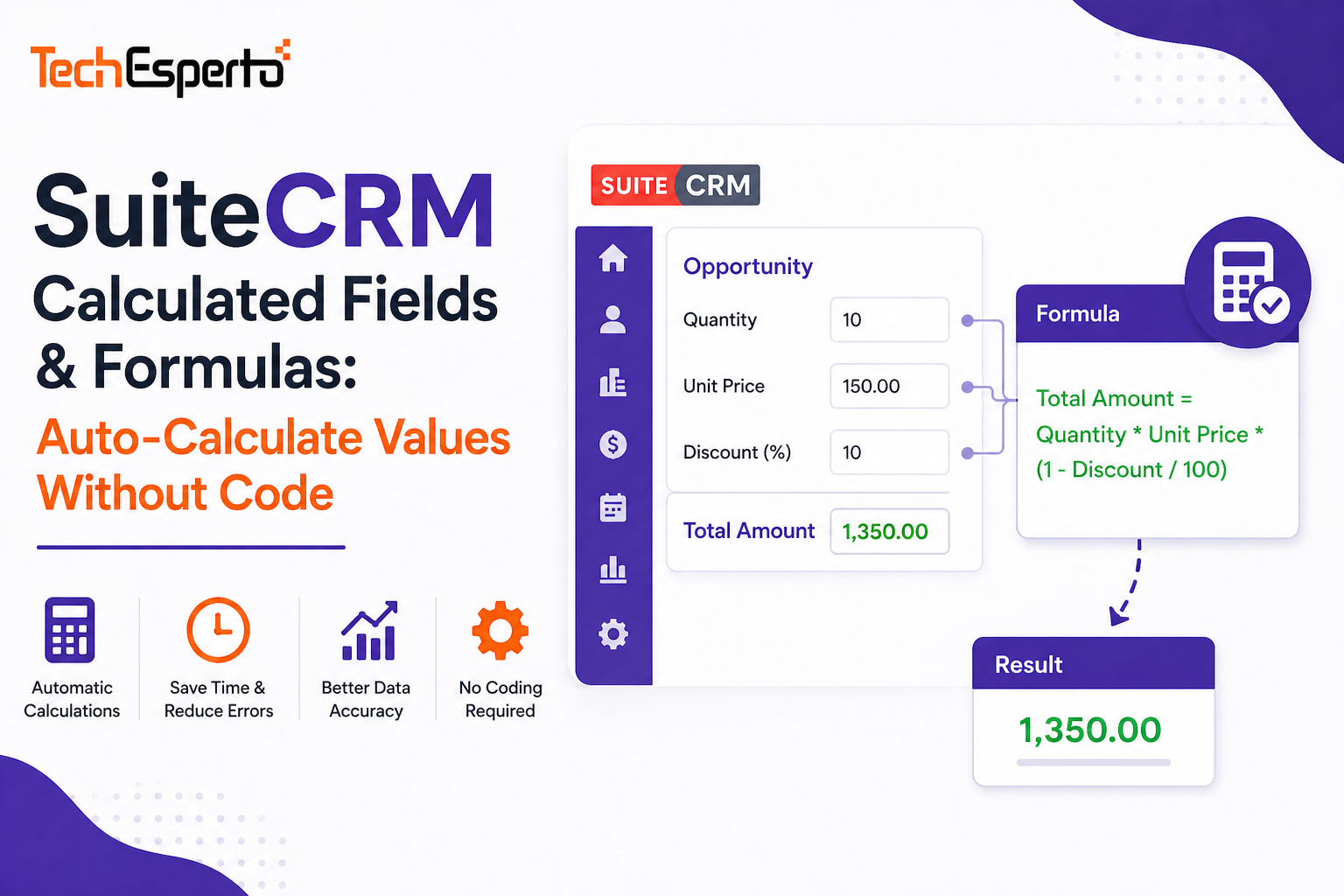
SuiteCRM Calculated Fields & Formulas: Auto-Calculate Values Without Code
Manual calculations inside CRM are a data quality disaster waiting to happen. When a sales rep has to manually calculate a deal’s gross margin, commission amount, or days since last contact, they either skip it (leaving the field empty) or get it wrong (entering inaccurate data that corrupts your reports). Calculated fields solve this by computing values automatically — every time, accurately, without human input.
SuiteCRM provides multiple approaches to calculated fields — from no-code workflow formulas to code-level Logic Hooks that handle complex multi-module calculations. This guide covers every method, when to use each, and practical formula examples for common business scenarios.
Method 1: Workflow Calculated Fields (No Code)
The simplest approach — available to any admin without PHP knowledge.
How It Works
SuiteCRM’s Advanced Open Workflow (AOW) includes a “Calculate Fields” action type. When a workflow fires (on record save or on a schedule), it evaluates a formula and writes the result to a field on the record.
Setting Up a Calculated Field Workflow
Navigate to Admin → Workflow Module → Create Workflow. Set the module (e.g., Opportunities). Set the trigger condition (e.g., “Run on Every Save”). Add an action → select “Calculate Fields.” Define the formula using SuiteCRM’s formula syntax. Select the target field where the result should be stored.
Formula Syntax Basics
SuiteCRM workflow formulas use a function-based syntax. Fields are referenced by their database name wrapped in curly braces. Common functions include:
Math: add, subtract, multiply, divide. Example: multiply({amount_c}, {commission_rate_c}) calculates commission from deal amount and rate.
String: strlen (string length), substr (substring), uppercase, lowercase. Example: uppercase({last_name}) converts a name to uppercase.
Date: daysUntil (days between today and a date field), addDays, addMonths. Example: daysUntil({contract_expiry_c}) calculates days remaining until contract expires.
Conditional: iif (if-then-else). Example: iif(greaterThan({amount}, 50000), “Enterprise”, “SMB”) categorizes deals by size.
Related records: relate (pull values from related modules). Example: relate({accounts}, “industry”) pulls the Account’s industry into the Opportunity.
Practical Workflow Formula Examples
Gross Margin Calculation: Create a workflow on Opportunities that fires on every save. Formula: subtract({amount}, {cost_c}). Target field: gross_margin_c. Result: every Opportunity automatically shows gross margin without manual calculation.
Commission Amount: Formula: multiply({amount}, divide({commission_rate_c}, 100)). Target: commission_amount_c. A $100,000 deal at 8% commission auto-calculates to $8,000. Useful for recruitment placement fees, insurance commissions, and real estate agent splits.
Days Since Last Activity: Formula: daysUntil({date_modified}). Target: days_inactive_c. Identifies stale records — pair with another workflow that flags records where days_inactive_c exceeds 30 as “At Risk.”
Contract Renewal Countdown: Formula: daysUntil({contract_expiry_c}). Target: days_to_renewal_c. Shows exactly how many days until each contract expires — critical for accounting firms tracking engagement deadlines, insurance agencies managing policy renewals, and any subscription-based business.
Deal Category by Size: Formula: iif(greaterThan({amount}, 100000), “Enterprise”, iif(greaterThan({amount}, 25000), “Mid-Market”, “SMB”)). Target: deal_category_c. Auto-classifies every deal for segmented reporting.
Age of Record (Days Since Creation): Formula: subtract(now(), {date_entered}). Converts to days. Useful for tracking lead age, case resolution time, or how long a construction bid has been open.
Limitations of Workflow Formulas
Workflow formulas are powerful for single-record calculations but have limitations. They can’t aggregate across multiple records (sum all line items, count related cases), can’t perform complex multi-step logic with intermediate variables, and run on save or on schedule — not in real-time as users type. For these advanced scenarios, use Logic Hooks.
Method 2: Logic Hook Calculated Fields (Code-Level)
Logic Hooks provide unlimited calculation power — any formula PHP can express, including cross-module aggregations, external API lookups, and complex conditional logic.
How It Works
A before_save Logic Hook executes PHP code before a record is written to the database. The code reads field values from the $bean object, performs calculations, and writes results back to $bean fields — which are then saved with the record.
When to Use Logic Hooks Over Workflows
Use Logic Hooks when you need to sum values from related records (total line item amounts on a Quote), count related records (number of open Cases per Account), calculate values based on data from multiple modules, perform real-time validation (block save if calculated value exceeds a threshold), and call external APIs as part of the calculation (currency conversion, tax rates).
Practical Logic Hook Examples
Weighted Pipeline Value: A before_save hook on Opportunities multiplies amount by probability percentage and stores the result in weighted_value_c. This gives dashboards accurate weighted pipeline data without manual entry.
Account Health Score: An after_save hook on Cases queries all cases for the related Account, calculates the ratio of open vs closed cases, factors in the average resolution time, and writes a health score (1–100) to the Account’s health_score_c field. Sales reps see at a glance which accounts need attention.
Total Contract Value (from Line Items): A before_save hook on a custom Contracts module sums all related line items (products × quantities × unit prices), applies discount percentage, adds tax, and writes the total to the contract’s total_value_c field. Essential for construction change order tracking and travel trip cost calculations.
Lead Score Calculation: A before_save hook on Leads evaluates demographic fields (job title = +20, company size > 50 = +15, target industry = +10) and behavioral data (email opened = +5, pricing page visited = +15) to compute a composite lead score. When the score crosses 70, a workflow flags the lead as Marketing Qualified. This powers lead scoring for any business — see our lead scoring glossary page for the concept.
Aging Buckets for Invoices: A scheduled Logic Hook runs daily, checking all unpaid Invoices. Based on days past due, it categorizes each into aging buckets: Current (0–30 days), 30–60 days, 60–90 days, 90+ days. These buckets drive dashboard charts showing accounts receivable health — critical for accounting firms managing client billing.
Upgrade-Safe Logic Hook Placement
Always place Logic Hook files in custom/Extension/modules/{ModuleName}/Ext/LogicHooks/ and custom/modules/{ModuleName}/. Never modify core files. Run Admin → Repair → Quick Repair and Rebuild after adding hooks. This ensures your calculations survive SuiteCRM upgrades.
Method 3: Studio Formula Fields (Limited)
SuiteCRM Studio doesn’t include a native “calculated field” type like some SaaS CRMs. However, you can achieve basic calculated behavior by combining custom fields (create the target field in Studio) with workflow formulas (populate the field automatically) — effectively using Methods 1 and 2 above.
Method 4: JavaScript Client-Side Calculations
For real-time calculations that update as users type (before saving), add JavaScript to the edit view. A custom JavaScript file in custom/modules/{ModuleName}/views/ can listen for field changes and update calculated fields instantly — showing the user the result before they click Save.
Example: a sales rep enters quantity and unit price on a Quote line item. JavaScript immediately calculates and displays the line total. On Save, a Logic Hook recalculates server-side to ensure accuracy (never trust client-side calculations for stored data).
This approach provides the best user experience but requires JavaScript knowledge. TechEsperto’s development team implements client-side calculations for interactive form experiences.
Industry-Specific Calculated Field Examples
| Industry | Calculated Field | Method |
| Insurance | Commission = Premium × Rate | Workflow |
| Construction | Contract Total = Original + Change Orders | Logic Hook |
| Recruitment | Placement Fee = Salary × Fee % | Workflow |
| Automotive | Gross Profit = Sale Price – Invoice Cost | Workflow |
| Travel | Trip Margin = Booking Value – Supplier Cost | Workflow |
| Accounting | Realization Rate = Billed ÷ Standard Hours | Logic Hook |
| Manufacturing | BOM Cost = Σ(Component × Qty × Unit Cost) | Logic Hook |
| Any | Days Until Expiry = Expiry Date – Today | Workflow |
| Any | Lead Score = Demographic + Behavioral Points | Logic Hook |
Best Practices
Store calculated values. Don’t recalculate on every page load — compute on save and store the result in a dedicated field. This keeps list views and reports fast.
Validate server-side. If you use JavaScript for real-time display, always recalculate in a before_save Logic Hook. Client-side calculations can be manipulated or bypassed.
Mark calculated fields as read-only. In Studio layouts, place calculated fields on DetailView but not EditView — preventing users from manually overwriting computed values.
Test with edge cases. What happens when a field is empty? When a division denominator is zero? When a date is in the past? Handle nulls and zeros gracefully to prevent errors.
Document your formulas. Add comments in Logic Hook code and descriptions in workflow names explaining what each calculation does and why.
When to Get Professional Help
Simple calculations (A × B, date differences) are straightforward with workflows. Complex scenarios benefit from professional SuiteCRM development: multi-module aggregations, cross-record calculations, external data lookups, real-time JavaScript calculations, and performance optimization for calculations running on large datasets.
As the Official SuiteCRM Professional Partner, TechEsperto builds calculated field solutions from simple formulas to complex scoring engines. Contact us for development help.
FAQs
Q1: Can SuiteCRM auto-calculate field values? Yes. Using workflow “Calculate Fields” actions (no code) or Logic Hooks (PHP code). Both compute values automatically on record save.
Q2: Can I calculate values across related modules? Yes — using Logic Hooks. Workflows can pull single values from related records, but summing or counting multiple related records requires PHP Logic Hooks.
Q3: Do calculated fields update in real-time? Workflow and Logic Hook calculations run on save. For real-time updates as users type, custom JavaScript provides instant visual feedback before saving.
Q4: Can I use calculated fields in reports? Yes. Since calculated values are stored in regular fields, they appear in reports and dashboards like any other field — filterable, sortable, and chartable.
Q5: Are calculated field customizations upgrade-safe? Yes — if placed in the custom/ directory. Workflow calculations are stored in the database. Logic Hooks in custom/Extension/ survive upgrades.
Q6: Can I prevent users from overriding calculated values? Yes. Place the calculated field on DetailView (read-only display) but not on EditView. Logic Hooks can also enforce the calculated value on every save regardless of user input.
Q7: What’s the difference between workflow formulas and Logic Hooks? Workflow formulas are no-code, admin-configured, and handle single-record calculations. Logic Hooks are PHP code that handles complex, multi-record, cross-module calculations with unlimited logic.
Q8: Can TechEsperto build custom calculations for us? Yes. We build everything from simple commission formulas to complex scoring engines and cross-module aggregations. Contact us for development support.